Your portal. Their colors on their pages.
Admin → Branding puts your name, your logo, and your accent on the whole instance, in light mode and dark. Each client can carry their own logo and accent on their pages, picked straight from their website. The public knowledge base can carry your name in front of your customers.
Brand it once, readable in both modes.
Say which mode your logo and color were drawn for, and Trove KB offers the other: a second logo and, if you want one, a second color. Leave it empty and it works one out for you.
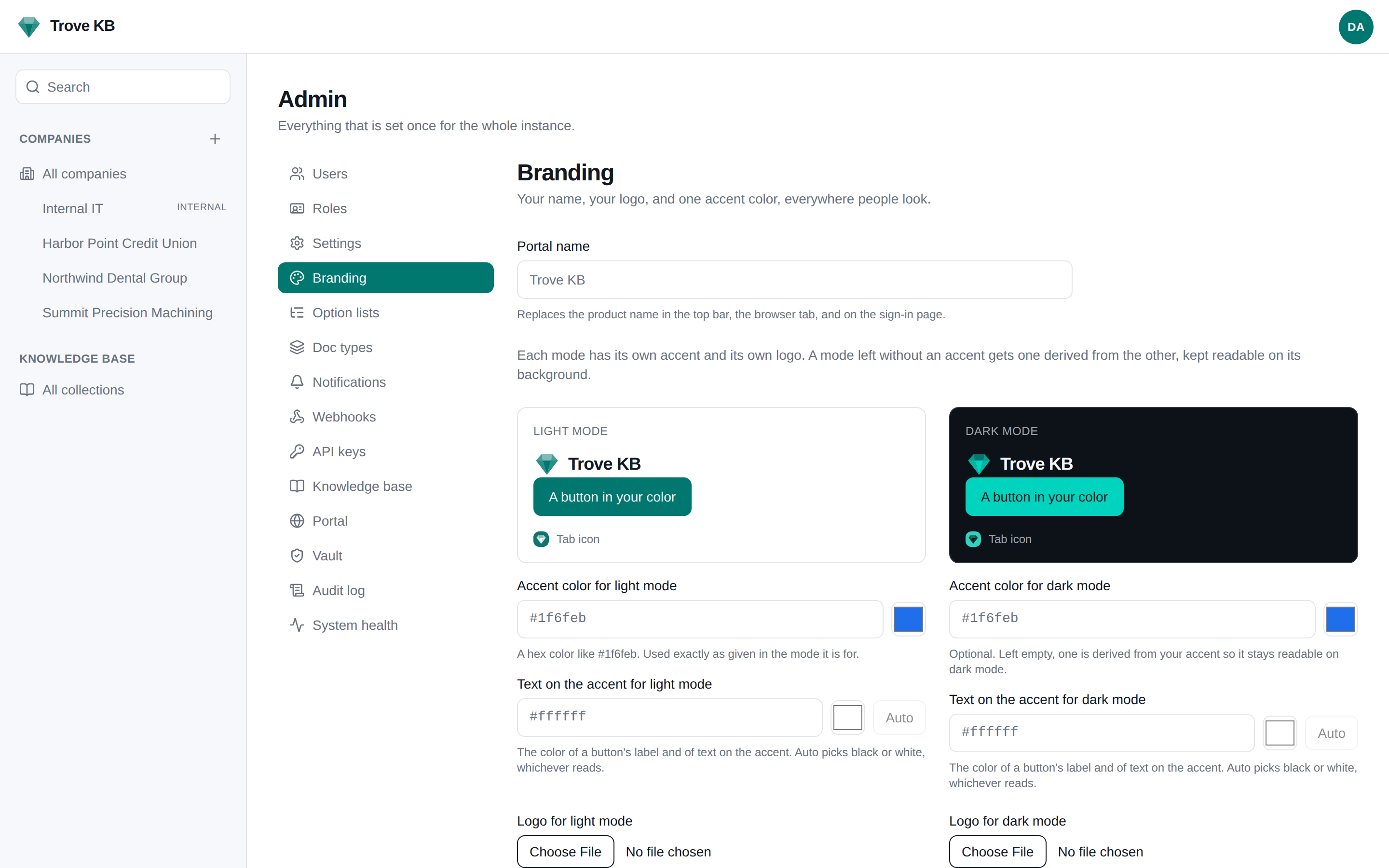
Replaces the product name in the top bar, the browser tab, and on the sign-in page.
PNG, JPEG, or WebP for light mode and, if it needs one, for dark. A logo drawn for white disappears on charcoal, so each mode can have its own. Leave dark empty and the light one serves both.
One color for buttons, links, the active item, focus rings, and the avatar. A color you give for a mode is used exactly as given; a mode you leave empty gets one derived from the other, adjusted until it reads on that background.
The label color on accent buttons and the avatar, per mode. Auto picks black or white, whichever reads.
Upload one per mode (PNG, WebP, or ICO), or keep the cut-gem mark, drawn in your accent. With two, the tab switches with the browser's theme in Firefox and Chromium.
- →The branding page previews both themes side by side, each rendered for real, so you can see the mode you are not using.
- →SVG logos are refused. An SVG can carry script, and a logo is drawn on every page.
- →The "Powered by" credit can be turned off. The AGPL-3.0 notice and the link to the source stay either way, because §13 is not an operator's to remove.
- →Until you set anything, the portal wears its own: a teal accent and the gem mark.
Know whose network you are looking at.
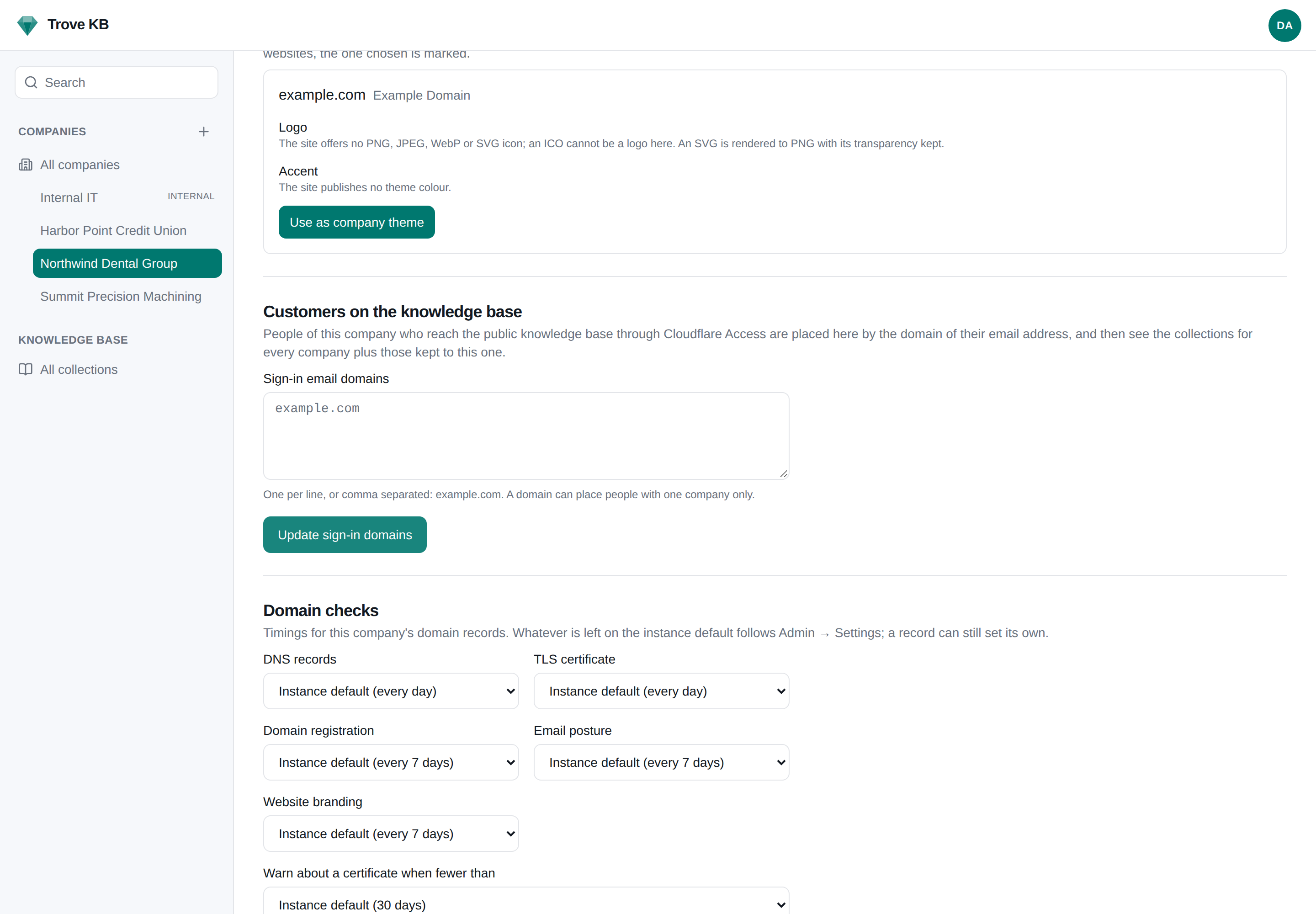
Each company can carry a logo and an accent of its own, set on its edit page, and they show on that company's pages and its documents. The shell keeps your branding, so it stays clear which portal you are in, while the page makes it obvious which client.
Nobody has to go looking for a client's hex code. The website branding check reads the client's own site for the logo it shows and the colors its stylesheets use. Use as company theme makes them the company's logo and accent. It is offered, never applied on its own.
Your name on the public knowledge base.
The public site serves the collections you choose on a hostname of your own, with your logo and accent. A customer who signs in and is placed with their company sees that company's logo in the corner too. The credit can read Powered by Trove KB | Your MSP, so your customers see you. Your own staff's pages keep the vendor's credit either way.
What stays, whatever you set
Trove KB is AGPL-3.0. Anyone using it over a network is entitled to its source, so the license notice and the source link stay in the footer even with the credit off. Read the license page for what that does and does not ask of an MSP.
Make it look like yours.
Name, logo, and accent in a few minutes; each client's colors picked from their own website.