v0.3.0 is about writing, and about pages that know about each other. A document can link to an article and the article knows it. A runbook can include another runbook, so the onboarding checklist stops being a copy of six smaller ones. The Markdown editor grew a toolbar and a live preview, and any article can now leave as a PDF or come in as an upload.
Link pages with [[wikilinks]]
Type [[ in a document’s Markdown field or in a knowledge base article, and a list of pages opens at the cursor: documents of your companies, your own company first, and articles in your collections. Pick one, or choose Create to start a new page with that name, in the same company or collection.
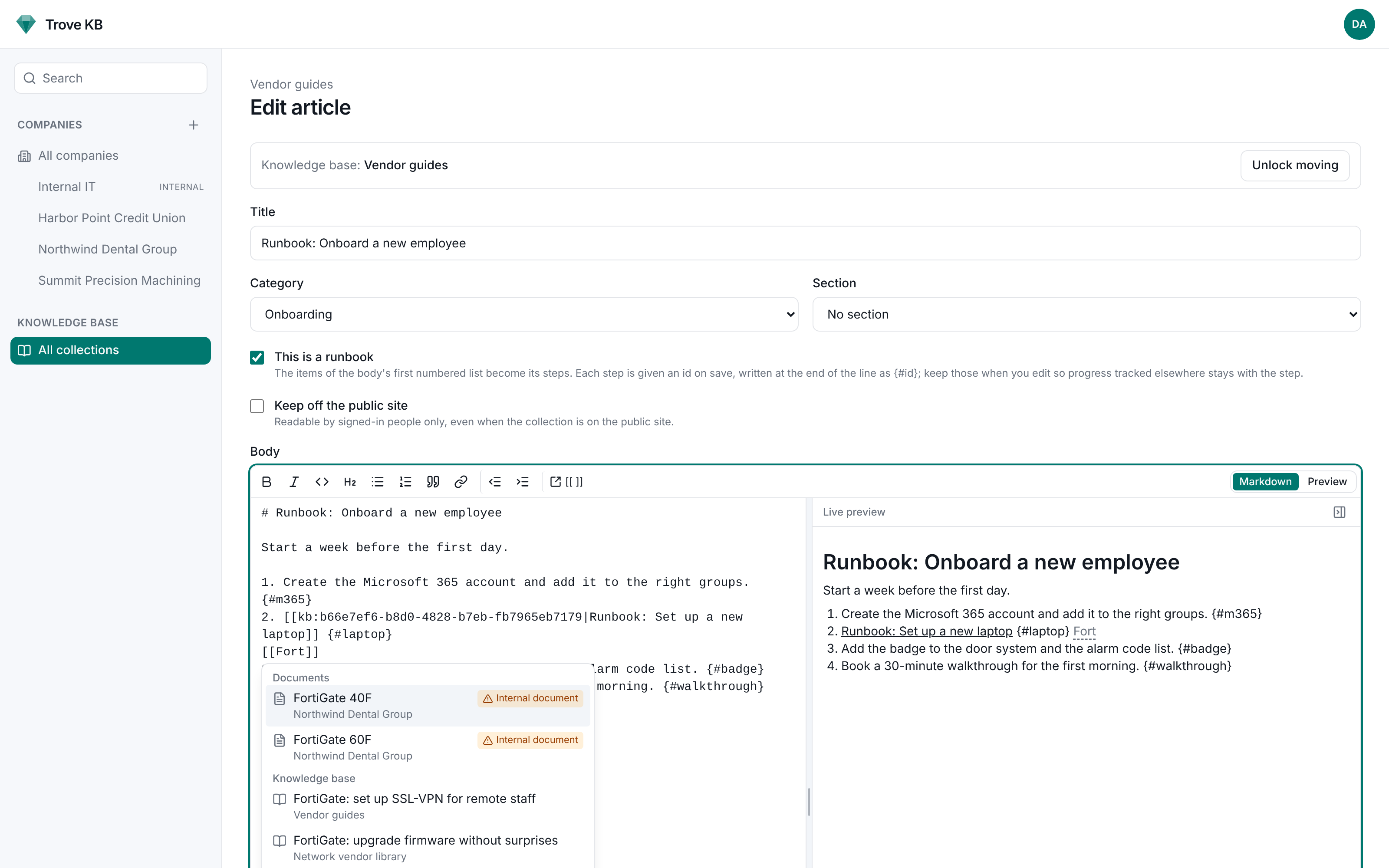
Links are stored by id, not by name, so they keep working when a page is renamed or moved. Each reader sees links resolved for them. A page they can’t open is shown as its label alone, never as a link and never with its current title: out of scope is “not found”, the same rule as everywhere else. When some readers of a page couldn’t follow one of its links, you’re warned.
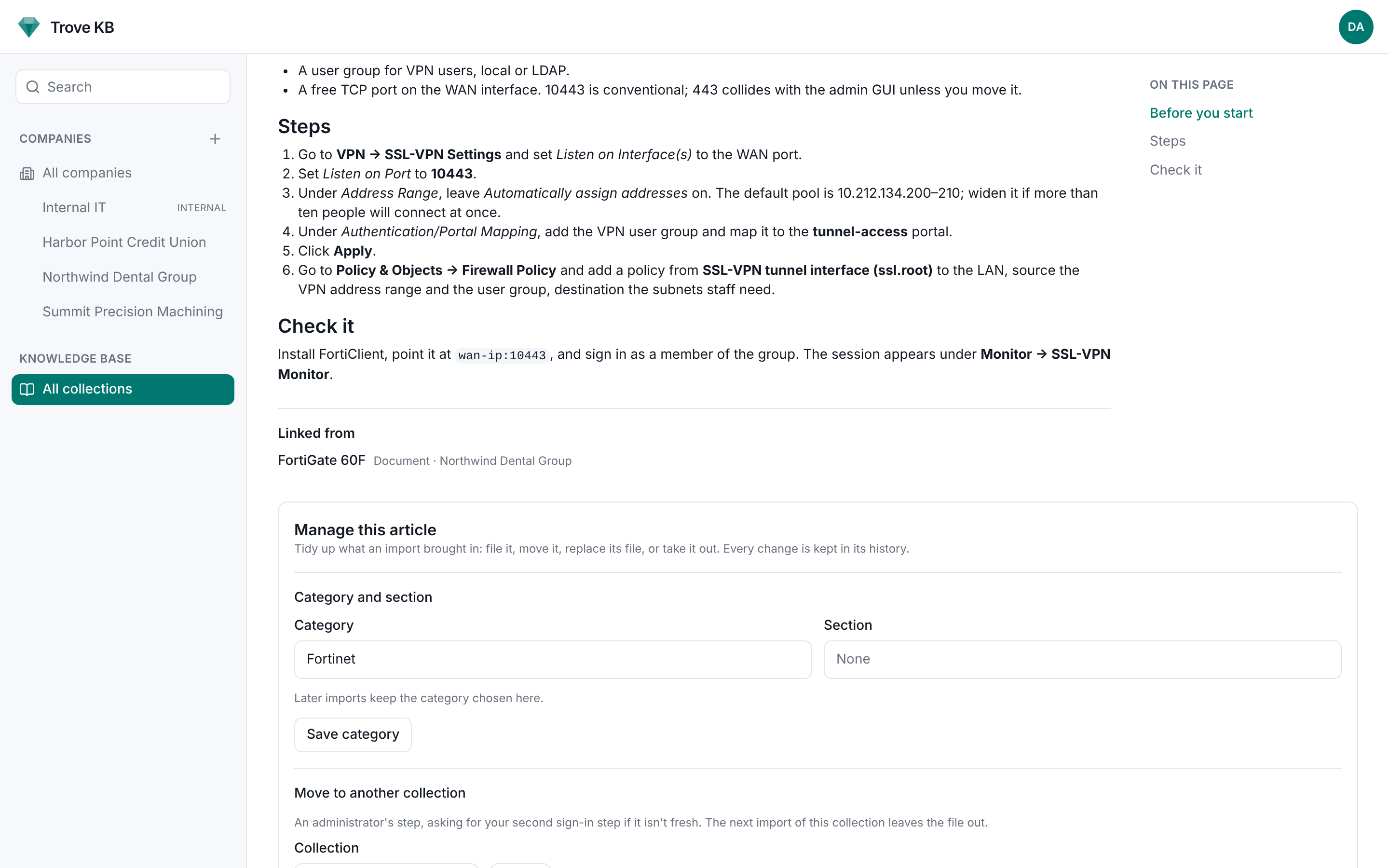
Linked from, and runbooks inside runbooks
An article now shows Linked from: the articles and documents that link to it. Documents list the articles that link to them, next to the document links they already showed.
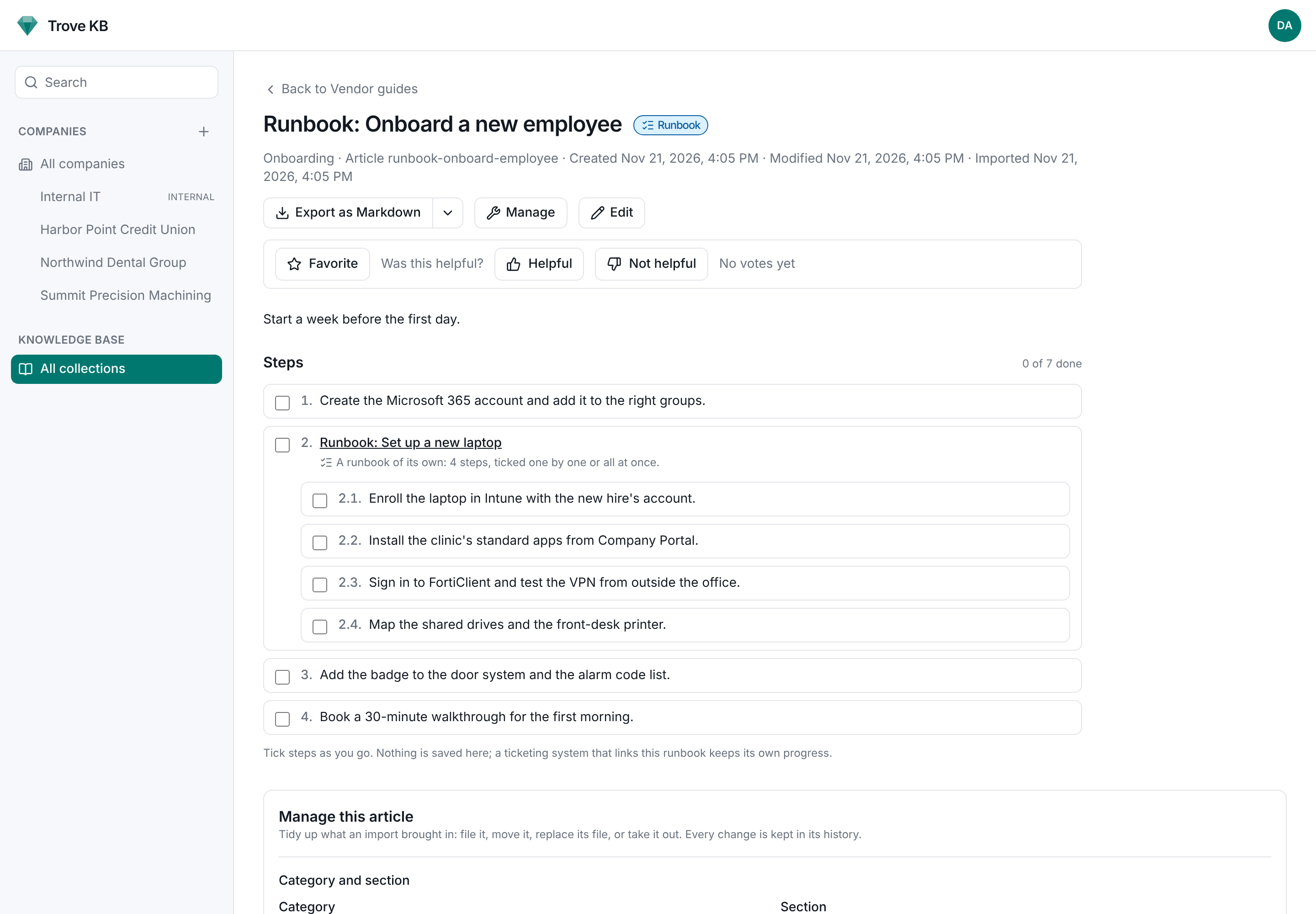
A runbook step that is only a link to another runbook opens into that runbook’s steps, numbered 2.1, 2.2 and so on. One onboarding runbook can list the small runbooks it needs, and each of those stays the single place it is written. Tick the steps one by one, or tick the linked step to tick all of its steps at once. A runbook that leads back into one it is already inside isn’t opened again.
A Markdown editor that shows its work
Markdown editors, for documents and articles alike, have a toolbar with indent and outdent (Tab and Shift+Tab inside a list), a Preview tab that draws the text exactly as the saved page will, and, on a wide screen, the preview beside the text as you type, with a handle to share the width.
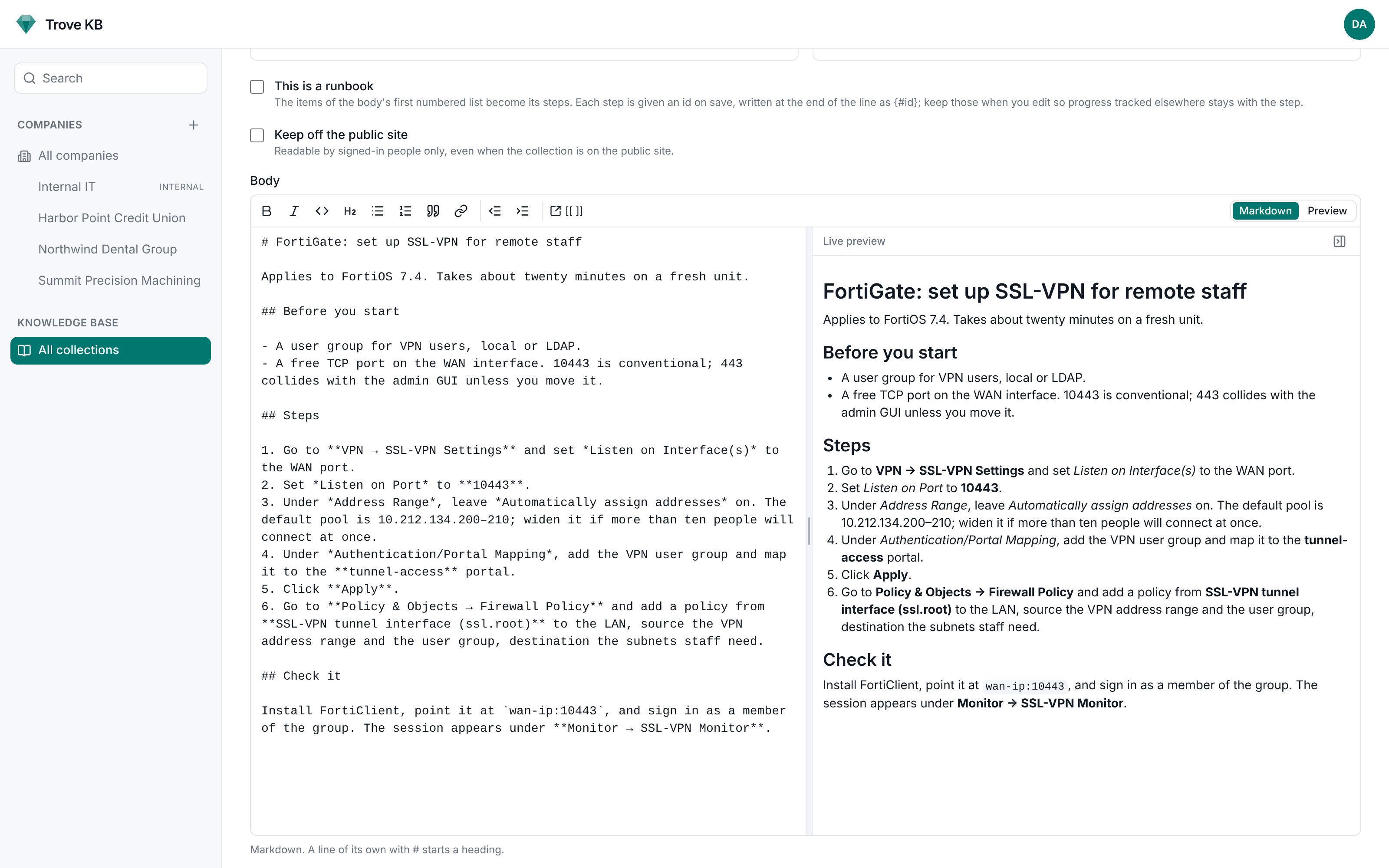
How to use: choose how editors open, Visual, Markdown or Markdown with live preview, from your account menu.
Export an article
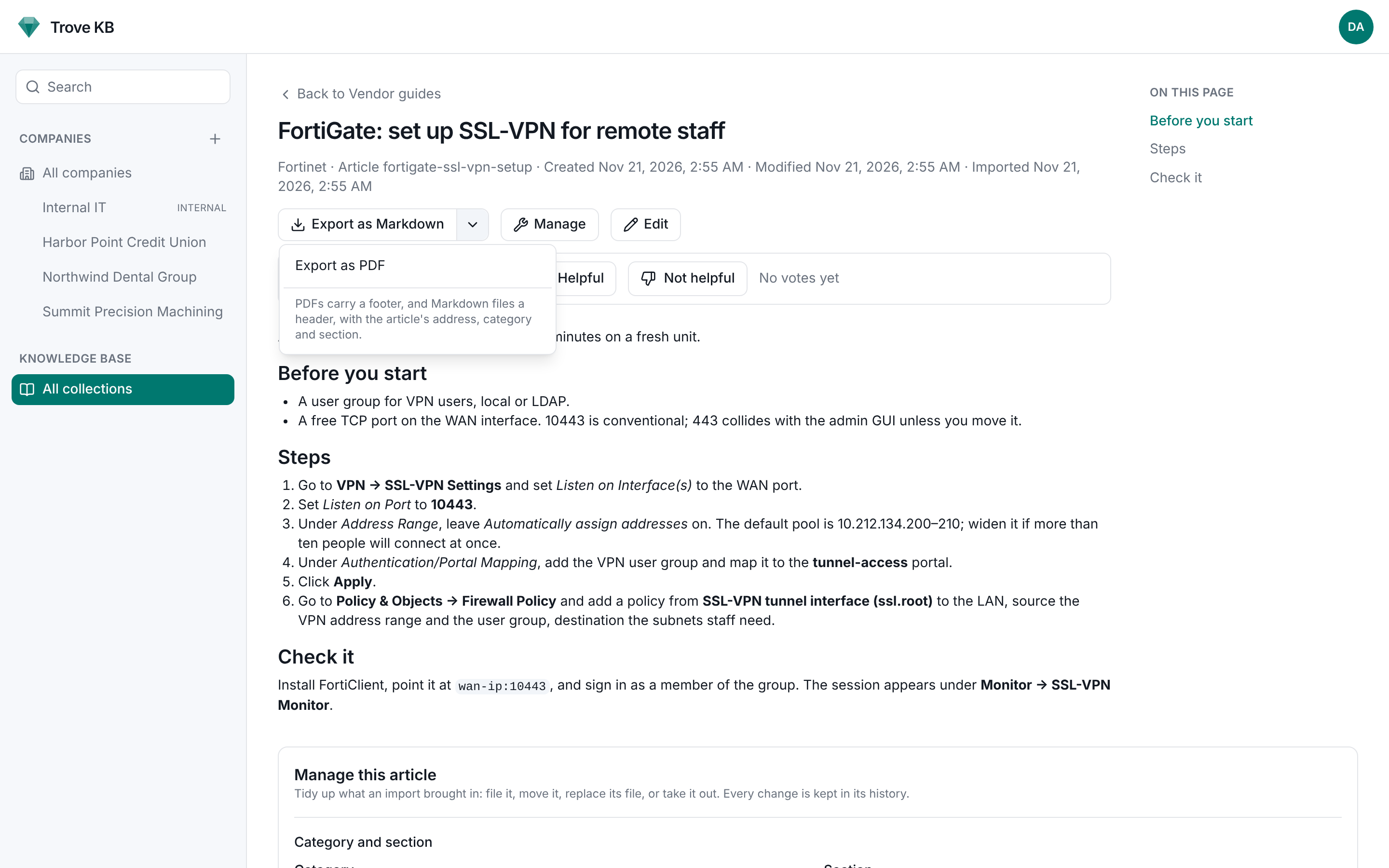
Every knowledge base article has an Export button, in the app and on the public site. Download it as a PDF or as Markdown, or in its own format first if it came from a file. Every PDF page carries a footer, and every Markdown file a header, with the article’s address, category and section, so a printed copy still says where it came from.
Upload instead of typing
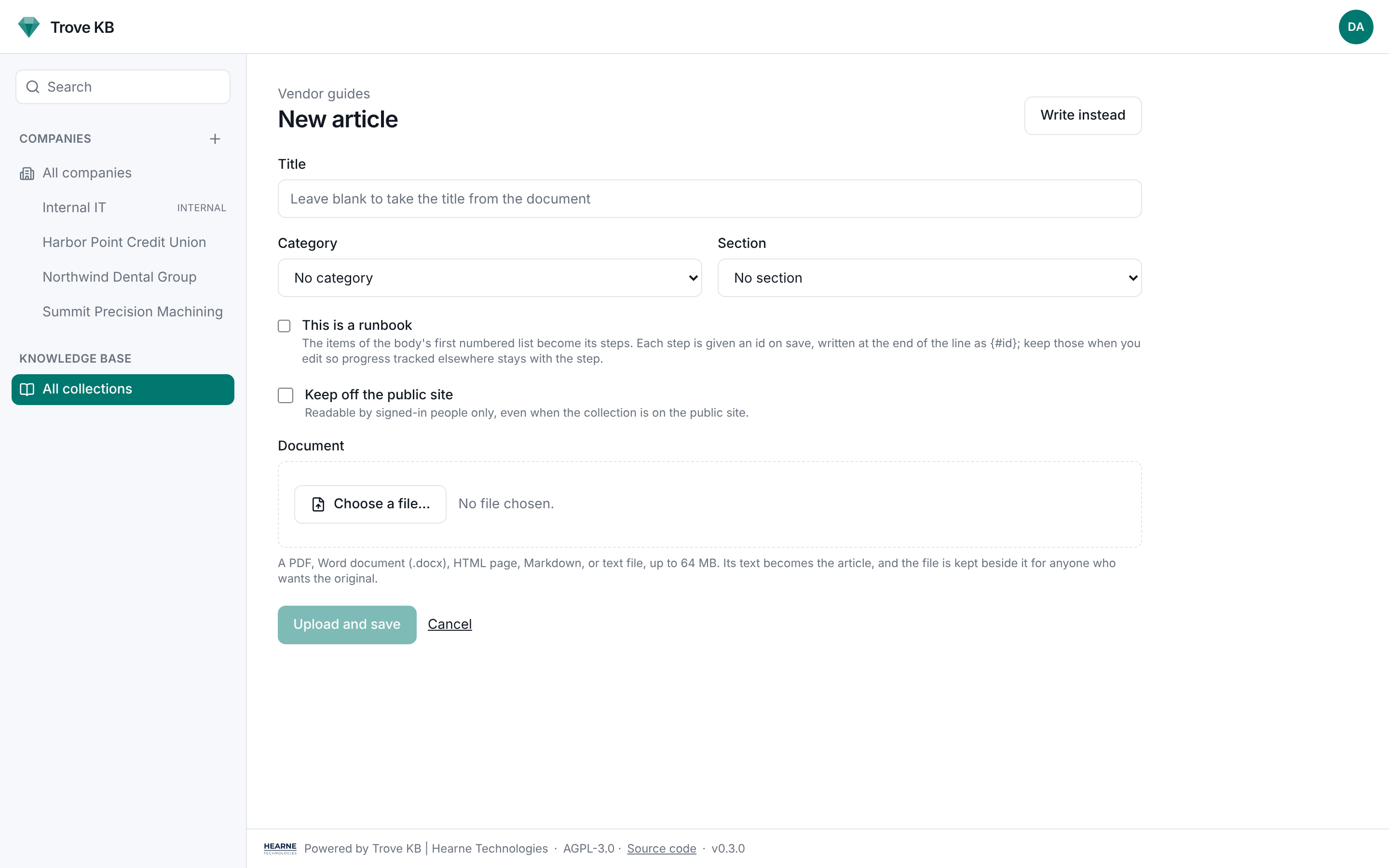
The New article page has an Upload + button. Choose one PDF, Word document, HTML page, Markdown or text file instead of typing the body, with the same title, category, section and runbook options. The file is read the way an import reads it, tidied the same way, and kept with the article.
Smaller things
- Lettered and roman sub-items (
a.b.under a step,i.ii.under those) show as a nested list numbered the way you wrote them, at any indentation, on the page and in PDF exports. - Emoji and icons such as ⚠️ and 🔧 come through in PDF exports instead of printing as
??.
Upgrading
- Production channel: installs v0.3.0 at the update hour you set, or within ten minutes of Update now under Admin → System health.
- Manual channel: run
updater/trove-kb-update.sh --install v0.3.0from the checkout. A plaindocker compose pullgets the old build there, because the updater pinsTROVE_IMAGE_TAGin.env. - Without the updater:
git pull,docker compose pull,docker compose up -d.
Two migrations run on start: the editor preference and the link index behind Linked from. There are no new environment variables. Links written from now on show up under Linked from as their pages are saved.
From here
The changelog has every change in this release, and the docs have a v0.3.0 snapshot.