v0.2.0 is the release where Trove KB starts looking after itself. A server can now follow a release channel and install each update on its own, with a backup before and a rollback if the new build does not come up. Around that: a cleanup pass for imported knowledge bases, field types that know what an IP address is, and a handful of smaller fixes to the things people touch every day. Here is what changed, and why it is shaped the way it is.
Updates you choose, installed by the host
Under Admin → System health, an administrator picks a channel. Production installs each new release at the update hour you set. Development installs the newest build of the dev branch at that hour, for test and staging servers. Manual, the default, never updates on its own and still shows what is available.
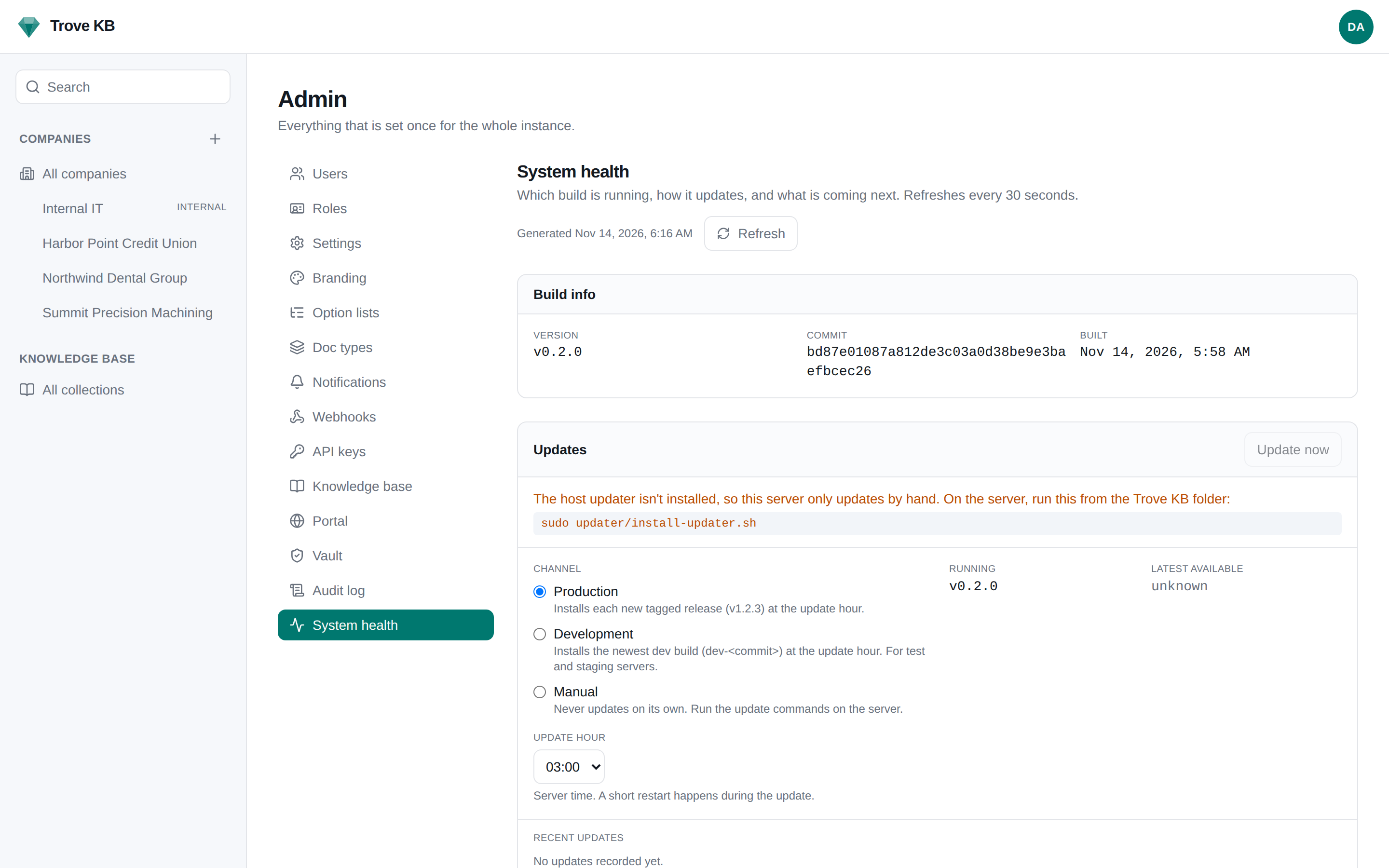
The same page shows the build that is running, what is available, what the host said on its last check, and an Update now button. Before anything installs, it lists the changes the next update brings, so an administrator knows what people are about to see. Recent updates, rollbacks, and failures are listed below, and every one of them, along with every change of channel, is in the audit log.
The part worth explaining is who does the updating. The app never updates itself: it has no Docker socket, no git, and no systemd access, and it should not, because a documentation tool holding the keys to its own host is a bad trade. Instead, a small host updater in updater/ runs from a systemd timer every 10 minutes as an ordinary user, never root. It reads the administrator’s choice from the app, does the work, and reports back.
Each update follows the same steps. The updater dumps the database into backups/, deploys the new build, and waits for the app to answer as that build. If it doesn’t, the updater puts the previous build back, records the rollback with its reason, and skips that build until a newer one arrives or someone presses Update now. It never moves to an older build, because migrations only go forward. On Docker it pins the image tag and restarts the stack. On a server without Docker, it builds each release beside the running one and switches over in one step, so a failed build changes nothing and a rollback is instant.
sudo updater/install-updater.sh            # Docker, as the checkout's owner
sudo updater/install-updater.sh --mode bare-metal --user trove
What’s new, once
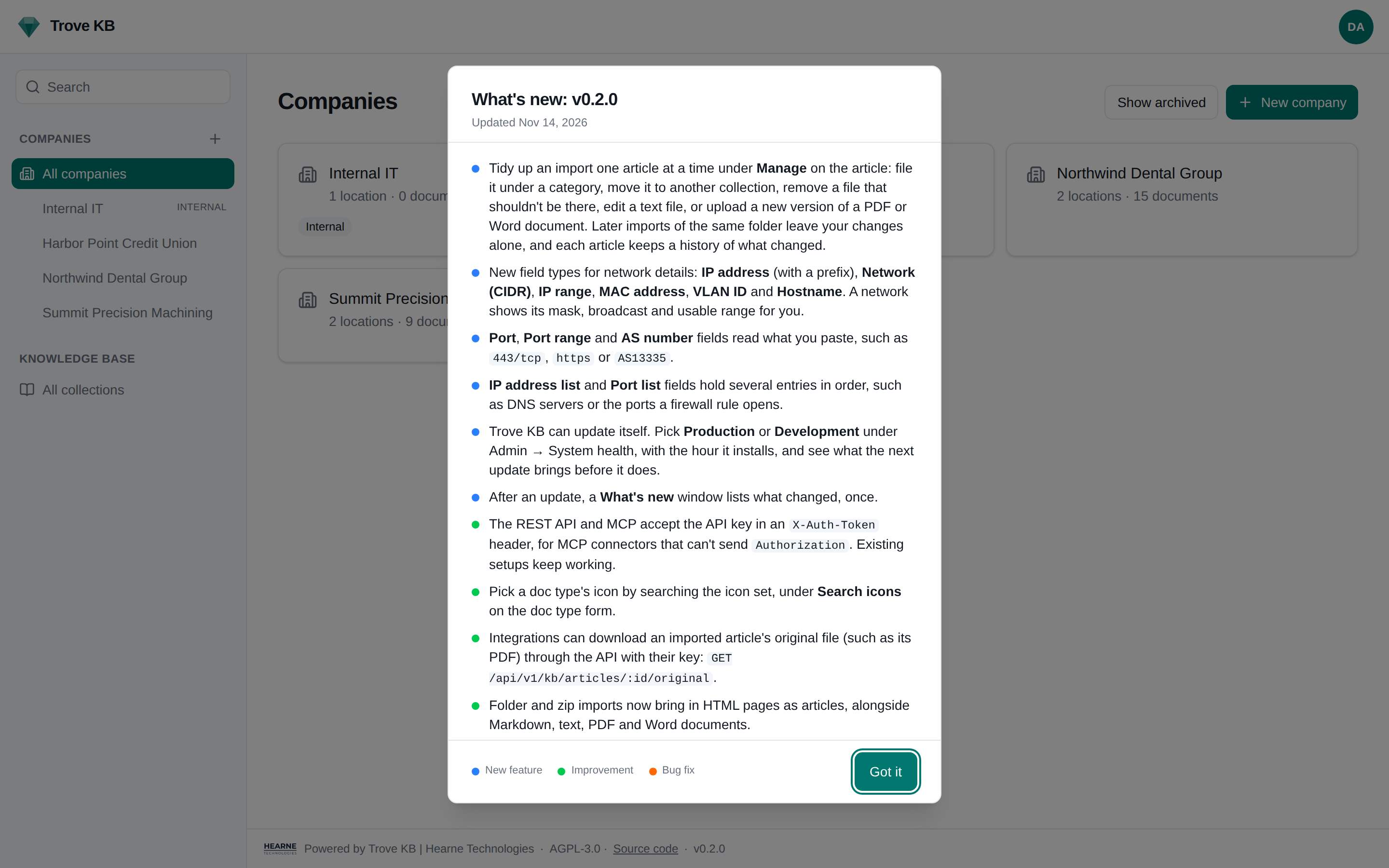
After an update, everyone gets a What’s new window once, listing what changed: new features, improvements, and fixes, each in its own color. Administrators see every entry. Everyone else sees only the entries written for people who read and edit documentation, and no window at all when an update brought nothing they would notice. Each entry is one plain sentence written for the people using Trove KB, not a commit message, and Admin → System health keeps the history.
Published images
Every build is now on the GitHub Container Registry, and docker compose up pulls instead of building on your server:
ghcr.io/joshhearne/trove-kb:stableis the newest release.:vX.Y.Zis one release, such as:v0.2.0.:dev-<sha7>is one build of thedevbranch, and:devthe newest.
TROVE_IMAGE_TAG in .env picks one, and the updater manages it once installed. A release is a tag on a dev commit that has already been tested, so a Development server has run every commit a release contains before any Production server sees it. To run your own changes, docker-compose.build.yml builds from the checkout as before, tagged trove-kb:local so the updater never replaces it.
Tidying an imported knowledge base
A folder export is rarely clean. There is the PDF filed under the wrong heading, the draft nobody meant to share, the manual that belongs in another collection. Until now the only fix was to edit the source and import again. Now an administrator tidies an import one article at a time under Manage on the article, whatever it came from.
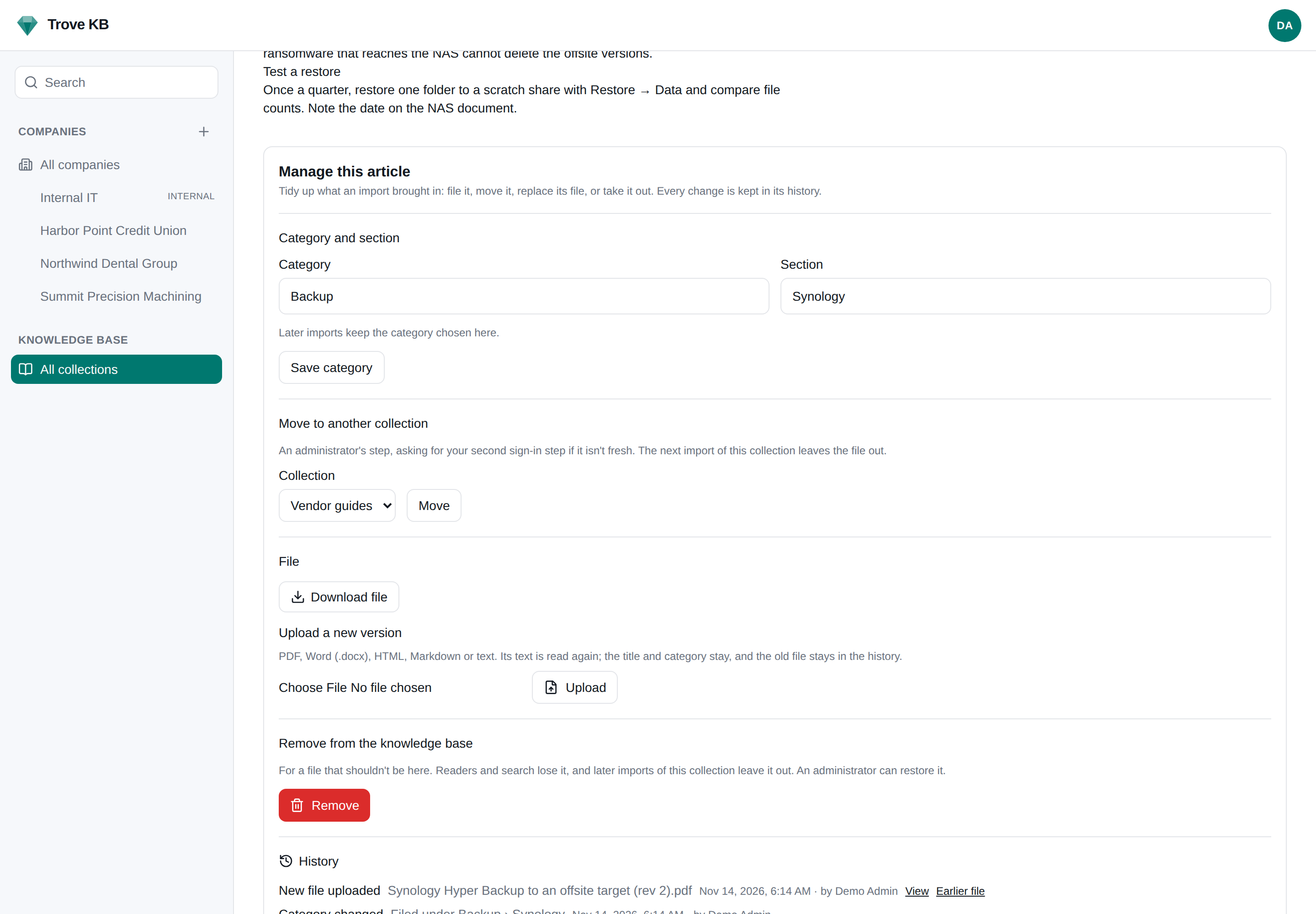
- File it under a category and section.
- Move it to another collection.
- Download the file it came from, or upload a new version of a PDF or Word document. Its text is read again, and the title and category stay.
- Edit the text of an article that came from a Markdown or text file.
- Remove a file that should never have come in, with a list on the collection’s admin page for restoring it.
Every change keeps what the article was before, text and file included, in the article’s history. The reason this lives on the article and not in the source folder is the next import. A removed, moved, or edited file is held out of the next import of that collection, and a filed article keeps its place while its content still updates. You can keep re-importing a vendor’s export without redoing the cleanup each time.
Folder and zip imports now also bring in HTML pages as articles, alongside Markdown, text, PDF, and Word. And integrations can download the file an imported article came from with their API key, at GET /api/v1/kb/articles/:id/original. That matters when the public site sits behind Cloudflare Access: its copy of the PDF answers an API client with a login page, and this route answers with the file. Resolvd needs it to check page numbers before it links into a PDF.
Network fields
An address typed into a text field is only as good as whoever typed it. 10.0.0.5, 10.0.0.5/24, and 10.0.0.5 255.255.255.0 are the same thing written three ways, and nothing stops 10.0.0.300. So the network details on a document now have types of their own, and each one reads what you paste.
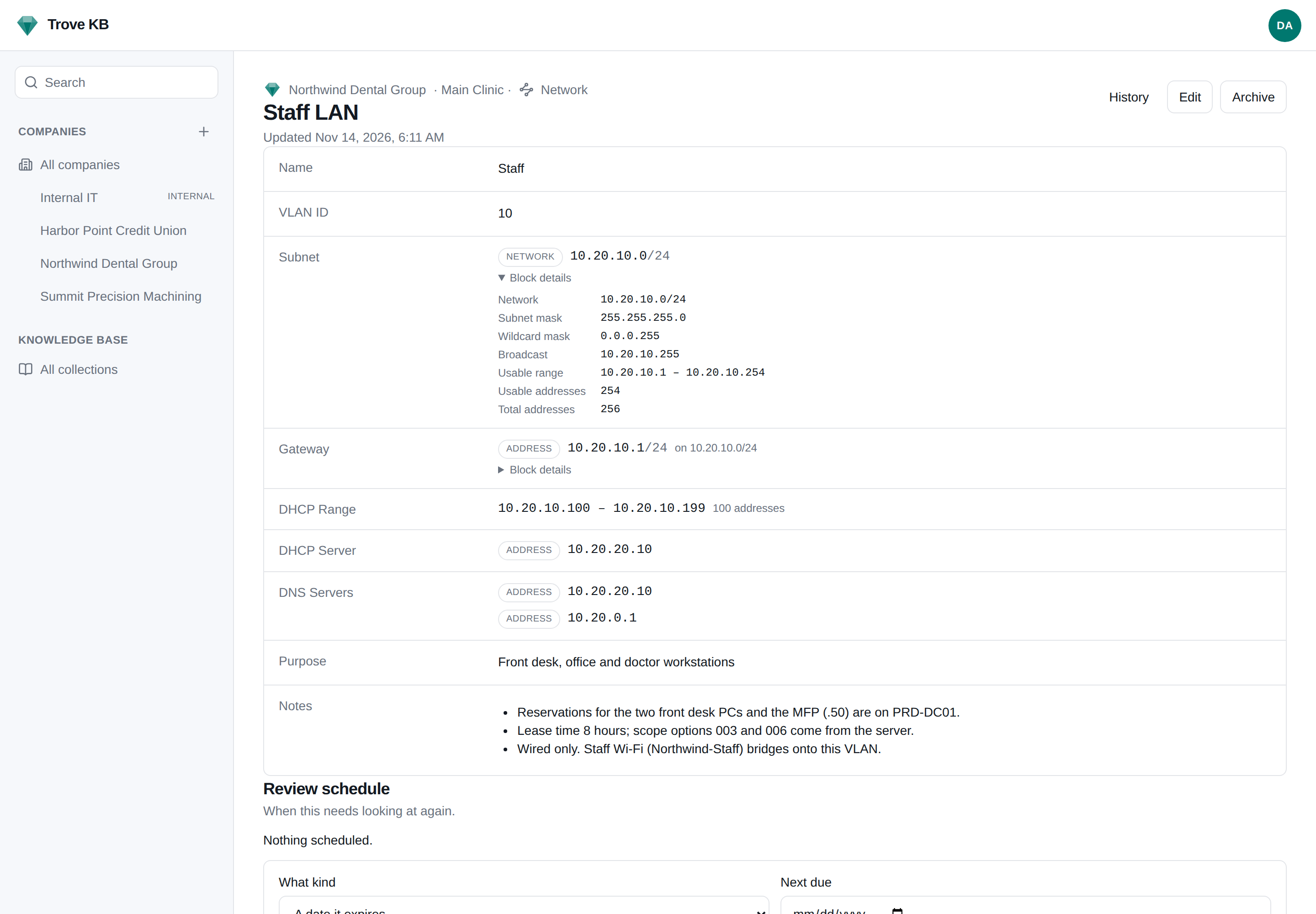
- IP address gains a prefix selector. Leave it blank for a single host, or pick
/24to record the subnet it sits on. - Network (CIDR) holds a whole block, and the document works out its mask, broadcast, and usable range for you.
- IP range is for DHCP pools, and IP address list for DNS servers, in order.
- MAC address is rewritten in one format as you type, chosen under Admin → Settings → Network fields or per field, and search finds it however it was spelled.
- VLAN ID and Hostname.
- Port, Port range, and Port list read
443/tcp,https, or5060-5080/udp. A port list holds what a firewall rule opens. - AS number reads
AS13335.
Values are stored in one normalized form, and the API returns them that way, so an integration gets something it can parse. The starter pack has a new Network doc type, one per VLAN or subnet at a location. The ISP, Firewall, Switch, Wi-Fi, Printer, and Server types gained typed WAN IPs, MACs, VLANs, hostnames, a VPN port, an ASN, and open ports. On an instance seeded under v0.1.0, SEED_ON_START adds the Network type and the new fields on its next start, and leaves the fields you already have exactly as they are.
Smaller things
- Markdown paste. Pasting into a Markdown field used to arrive as literal text with every marker escaped, so a pasted
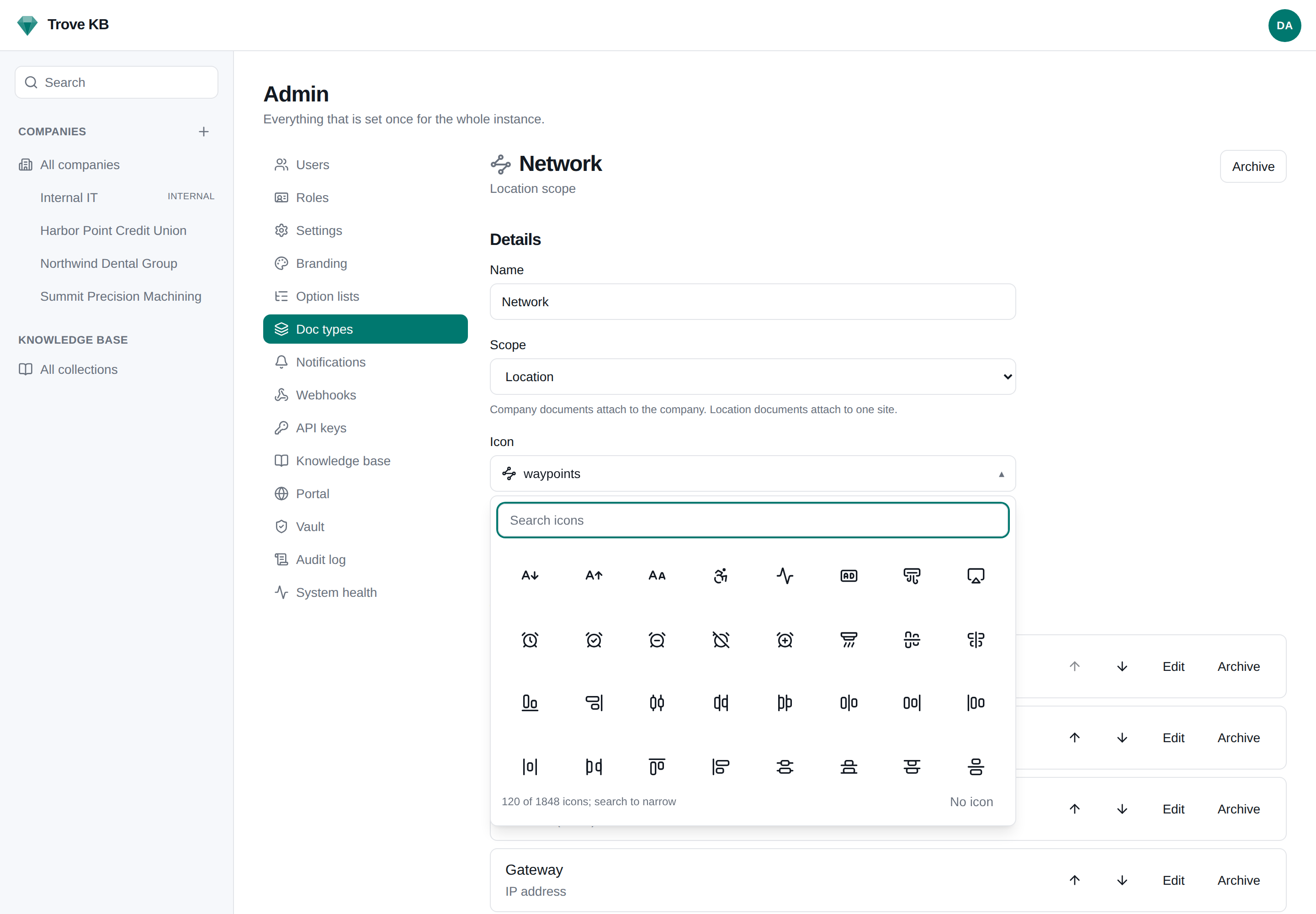
.mdfile read as\# Headingand its tables fell apart. Pasted text is now read as Markdown, with headings, tables, and checklists kept, and Shift+paste keeps it plain. A Visual | Markdown switch shows the source. - Doc type icons. Icons were stored but never shown. Now you pick one under Search icons on the doc type form, and it appears beside the type’s name on the company page, the document pages, and the admin list.
X-Auth-Token. The REST API and MCP accept the API key in anX-Auth-Tokenheader. An organization’s custom MCP connector can only send headers from a fixed list, andAuthorizationis not on it. ExistingAuthorization: Bearersetups keep working.- Website branding. The check used to read only the page’s head, which is why it kept offering a favicon as the logo, and no color at all from a site that declares none. It now finds the logo the site actually shows, inline SVG included, and the colors its stylesheets paint with.
Upgrading from v0.1.0
v0.1.0 built its image on the server. From v0.2.0, the compose file runs the published image. Take a pg_dump first, then, in the checkout:
git pull                     # main is now v0.2.0
docker compose pull          # ghcr.io/joshhearne/trove-kb:stable
docker compose up -d
Migrations run on start. TROVE_IMAGE_TAG defaults to stable if .env does not set it. Then install the host updater with sudo updater/install-updater.sh and choose a channel under Admin → System health. The updater will not run over local changes to tracked files in the checkout, so commit or discard any first. If you would rather keep building from source, add docker-compose.build.yml. The Updates topic has the details, including the bare-metal install.
From here
Releases are now tags on a tested dev commit, and a server on the Production channel picks each one up at its update hour. The changelog follows each tag, and the docs have a snapshot per release, with new topics for updates and field types in this one.